





Este documento proporciona información sobre cómo navegar y utilizar correctamente la página Metadatos de licencia en la pestaña Administración Open iT Server.
Introducción #
La página Metadatos de licencia contiene varias funciones para configurar y establecer los detalles de los servidores de licencias que se muestran en el portal del monitor de licencias. La página solo es visible para los usuarios con derechos administrativos en Open iT Server y está oculta de forma predeterminada.
Activación de metadatos de licencia #
Siga estos pasos para habilitar o deshabilitar los metadatos de la licencia:
- Ir a la Configuración de la interfaz web de Analysis Server.

Figura 1. Administración del servidor de análisis: metadatos de licencia - Localice la clave de configuración Root.Web.LicenseMetaData.
- Haga clic en el valor y debería transformarse en un desplegable.
- Establezca el valor en True para activarlo.
- Haga clic en Guardar para aplicar los cambios.
- Haga clic en el botón Reiniciar sesión situado en la parte inferior de la tabla de configuración.

Figura 2. Administración de Analysis Server: Reiniciar sesión - Confirme que el Metadatos de la licencia La pestaña es visible y accesible en la sección Administración ficha.

Figura 3. Administración del servidor de análisis: pestaña Metadatos de licencia


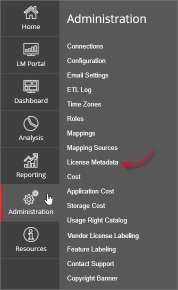
Debería aparecer la página Metadatos de la licencia.
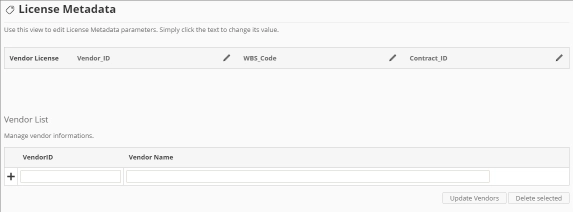
Figura 4. Página de metadatos de la licencia de administración del servidor de análisis
Requisitos #
Asegúrese de cumplir los siguientes requisitos antes de utilizar la página Metadatos de la licencia:
- La base de datos SQL se ha creado correctamente.
- Los datos sobre el estado de la licencia están disponibles en la base de datos del servidor central.
- Los datos deben cargarse y procesarse.
- Lista preparada de productos con diversos metadatos de licencia para la configuración.
- Derechos administrativos del usuario web actual.
Actualización del nombre detallado #
Hay tres detalles incluidos inicialmente que se pueden configurar: Vendor_ID, WBS_Code y Contract_ID. Estos campos son personalizables y se pueden actualizar para cumplir con la información necesaria en el Portal de supervisión de licencias.
Siga estas instrucciones para actualizar el nombre del detalle:
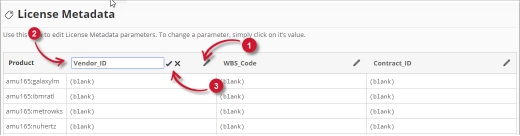
Figura 5. Administración del servidor de análisis. Editar detalles de metadatos de licencia.
- En el encabezado de columna de la tabla Metadatos de licencia, haga clic en el icono de edición. Esto debería transformarse en un cuadro de texto.
- Modifique el valor al nombre del detalle deseado.
- Haga clic en el símbolo de verificación para guardar los cambios.
Añadir proveedores #
Siga estas instrucciones para añadir proveedores:
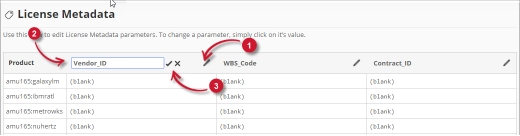
Figura 6. Metadatos de la licencia de administración del servidor de análisis: añadir proveedores
- En el panel Lista de proveedores, situado debajo de la tabla Metadatos de licencia, escriba el valor deseado en la columna ID_proveedor.
- En la columna Nombre del proveedor, escriba el nombre del proveedor asociado al ID_proveedor.
- Haga clic en el símbolo de añadir (+) para añadir el elemento a la lista.
Actualización de proveedores #
Siga estas instrucciones para actualizar los proveedores en la Lista de proveedores:
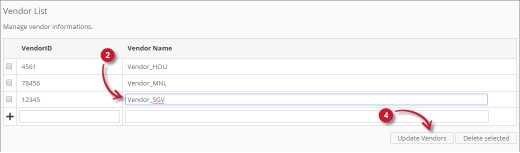
Figura 7. Metadatos de la licencia de administración del servidor de análisis: edición de proveedores
- En la lista, busca el elemento que deseas actualizar.
- Haga clic en el valor de la columna y se transformará en un cuadro de texto.
- Modifique el valor.
- Haga clic en el botón Actualizar proveedores para aplicar los cambios.
Eliminación de proveedores #
Siga estas instrucciones para eliminar proveedores:
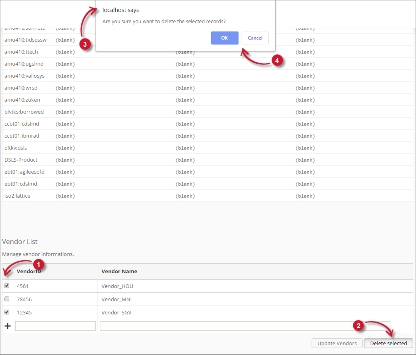
Figura 8. Metadatos de la licencia de administración del servidor de análisis: eliminación de proveedores
- En la lista, haga clic en la casilla de verificación del elemento que desea eliminar.
- Haga clic en el botón Eliminar seleccionados.
- Debería aparecer un mensaje de confirmación indicando que se ha eliminado el elemento.
- Haga clic en Aceptar para continuar.
La lista debería actualizarse automáticamente.
Configuración de metadatos de licencia #
Siga estas instrucciones para configurar los detalles en los metadatos de la licencia:
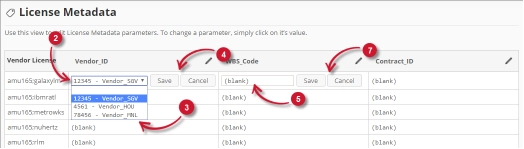
Figura 9. Administración del servidor de análisis Configuración de metadatos de licencia
- En la lista de licencias de proveedor, busque el servidor de licencias que desea configurar.
- En la columna Vendor_ID, haga clic en el valor y se transformará en una lista desplegable. Observe que las opciones son los proveedores añadidos en la lista de proveedores.
- Elige entre las opciones.
- Haga clic en Guardar para aplicar los cambios.
- En las dos últimas columnas, haz clic en los valores y se convertirán en cuadros de texto.
- Modifique el valor.
- Haga clic en Guardar para aplicar los cambios.
Verificación #
Los metadatos de licencia configurados se reflejan en el portal License Monitor. Siga estas instrucciones para verificar los detalles:
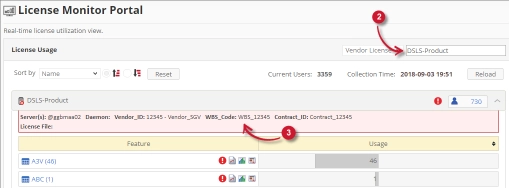
Figura 10. Metadatos de la licencia de administración del servidor de análisis: verificación
- Ir a la página del portal LM.
- Busque la licencia de proveedor configurada en la página Metadatos de licencia.
- Haga clic en el nombre de la licencia del proveedor para mostrar los metadatos del servidor de licencias. Observe que se muestran los detalles configurados.
Solución de problemas #
Esta parte proporciona una posible solución alternativa para un problema conocido en la página Metadatos de la licencia.
Aparece una página de error cuando no se accede en localhost #
Habrá ocasiones en las que, al acceder a la página de metadatos de la licencia de forma remota o mediante el nombre de host, se muestre una página de error.
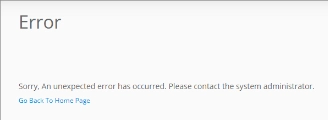
Figura 11. Página de metadatos de la licencia del servidor de análisis Solución de problemas: se muestra la página de error
Utilice las siguientes sugerencias para solucionar este problema:
Comprobación de errores en la consola del navegador web #
Siga estas instrucciones para comprobar si hay errores en la consola del navegador web:
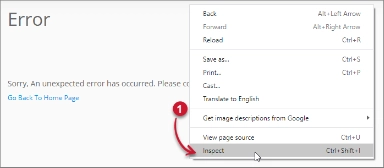
- En el Metadatos de la licencia haga clic con el botón derecho del ratón en cualquier lugar de la página y seleccione Inspeccione.

Figura 12. Página de metadatos de la licencia del servidor de análisis Solución de problemas: Se muestra una página de error: inspeccione
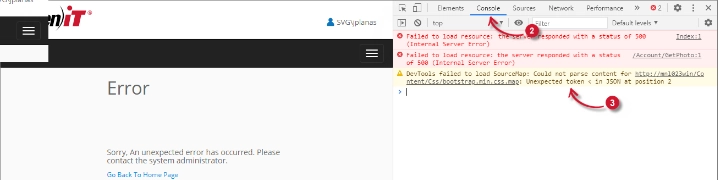
En Herramientas para desarrolladores debería aparecer. - Elija Consola de las pestañas disponibles de la herramienta.
La consola enumera las transacciones del navegador web, incluidos los errores.
Figura 13. Página de metadatos de la licencia del servidor de análisis Solución de problemas: Se muestra una página de error: consola - Los errores en la consola pueden ser a veces demasiado técnicos, para una respuesta inmediata, envíe el detalle del error a support@openit.com.
Acceda al sitio web a través de localhost #
Para ver el mensaje de error real del servidor, vaya a la máquina que aloja el servidor de análisis de Open iT y, a continuación, acceda a http://localhost en un navegador. Debería aparecer el mensaje de error real.