





This document provides information on how to navigate and use the Partition Manager page under the Open iT Analysis Server Administration tab.
Introducción #
The Partition Manager page contains various functionalities to configure and setup available data partitions in the OLAP cube. The page is only visible to users with Open iT Analysis Server Administrative rights and is hidden by default.
Only SQL Server editions Developer, Enterprise and Business Intelligence (BI) support data partitions.
Enabling Cube Partitioning #
Follow these steps to enable or disable OLAP cube partitioning:
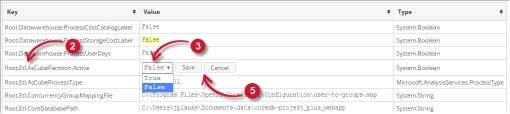
- Go to the Configuration page of Analysis Server web interface.
- Locate the configuration key Root.Etl.AsCubePartition.Active.
- Haga clic en el valor y debería transformarse en un desplegable.
- Establezca el valor en True para activarlo.
- Haga clic en Guardar para aplicar los cambios.
- Haga clic en el botón Reiniciar sesión situado en la parte inferior de la tabla de configuración.

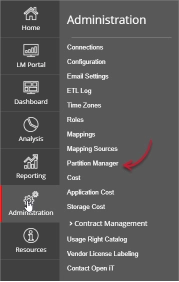
Figura 2. Administración de Analysis Server: Reiniciar sesión - Confirme que el Partition Manager La pestaña es visible y accesible en la sección Administración ficha.

Figure 3. Analysis Server Administration: Partition Manager Tab

The Partition Manager page should be displayed.
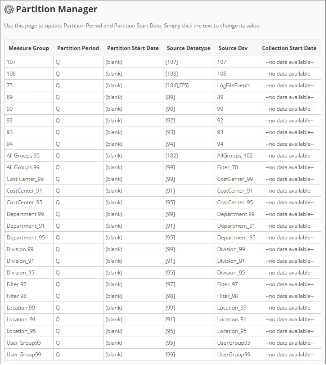
Use the following descriptions to properly configure the Partition Start Date of each item:
- Measure Group – the name that uniquely identifies the predefined measure group in the OLAP cube.
- Partition Period – the predefined period included in the data partition of the measure group.
- Partition Start Date – the start date that identifies the start of data partition of the measure group.
- Source Datatype – the source of the measure group from the Open iT data aggregations.
- Source Dsv – the name of the source table or view in the SQL database.
- Collection Start Date – the start date of the available data.
Requisitos #
Ensure to meet the following requirements before using the Partition Manager page:
- Las bases de datos SQL y OLAP se crean correctamente.
- Prepared list of start dates of each partition for configuration.
- Derechos administrativos del usuario web actual.
Configuring Partition Manager #
Follow these instructions to configure the Partition Start Date:
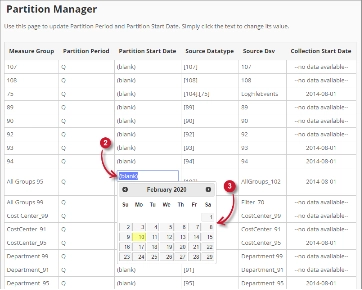
- Look for the measure group to configure from the list.
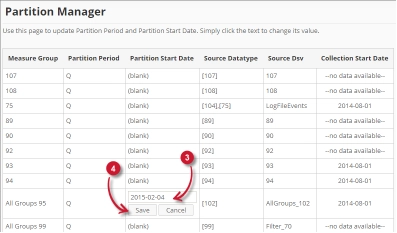
- Click the Partition Start Date column value. This should transform into textbox and a calendar should appear.
- Choose from the calendar the desired start date of the partition.

Figure 6. Analysis Server Administration Save Partition Manager
Once clicked, the selected date should automatically be posted in the textbox with the format YYYY-MM-DD. - Haga clic en Guardar para aplicar los cambios.
Solución de problemas #
This part provides the possible work around for a known issue in the Partition Manager page.
Aparece una página de error cuando no se accede en localhost #
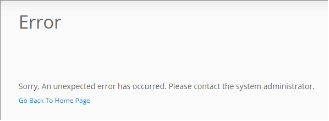
There will be times that when accessing the Partition Manager page remotely or via hostname, it displays an error page.
Utilice las siguientes sugerencias para solucionar este problema:
Comprobación de errores en la consola del navegador web #
Siga estas instrucciones para comprobar si hay errores en la consola del navegador web:
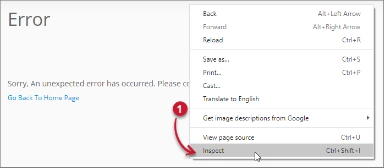
- In the Partition Manager haga clic con el botón derecho del ratón en cualquier lugar de la página y seleccione Inspeccione.

Figure 8. Analysis Server Partition Manager Page Troubleshooting: Error page displayed – Inspect
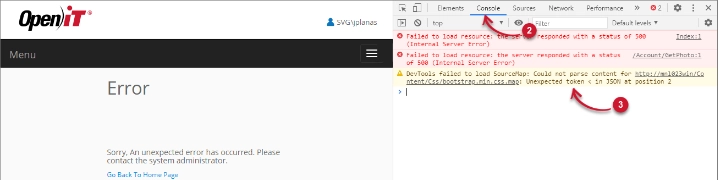
En Herramientas para desarrolladores debería aparecer. - Elija Consola de las pestañas disponibles de la herramienta.
La consola enumera las transacciones del navegador web, incluidos los errores.
Figure 9. Analysis Server Partition Manager Page Troubleshooting: Error page displayed – Console - Errors in the console may sometimes be too technical, for immediate response, send the error detail to support@openit.com.
Acceda al sitio web a través de localhost #
Para ver el mensaje de error real del servidor, vaya a la máquina que aloja el servidor de análisis de Open iT y, a continuación, acceda a http://localhost en un navegador. Debería aparecer el mensaje de error real.