


- LicenseAnalyzer このデータは、Power BI や Tableau と組み合わせて使用し、カスタマイズ可能なソフトウェア の利用状況レポートを作成することができます。
- カスタムダッシュボードを活用することで、チームはさまざまなステークホルダーやユースケース、意思決定のニーズに合わせてビューをカスタマイズできます。
- BIを活用したレポート機能により、ソフトウェア のライセンスに関する分析結果を、より簡単に分析・共有し、それに基づいたアクションを起こすことが可能になります。
カスタムレポートは、経営幹部やアナリストが実際にライセンスデータと向き合う場であり、その形式は基礎となる数値と同じくらい重要です。LicenseAnalyzer とPower BIおよびTableauとの連携により、組織は、ライセンス管理ツールに標準で付属するレポートテンプレートではなく、自社の意思決定フレームワークに合わせたカスタマイズ可能なレポートを作成できるようになります。Open iT は、この連携を、SAMチームがステークホルダーがすでに利用しているBI環境内で彼らと連携できるようにするレイヤーとして位置付けており、これにより、ライセンスレポートが独立したチャネルから、通常の分析フローの一部へと組み込まれるようになります。
Open iTのLicenseAnalyzerの主な機能の 1 つは、特定のニーズや好みに合わせて カスタマイズ可能なレポート テンプレートやアドホック レポートを作成できることである。LicenseAnalyzer内蔵のレポート デザイナを使用してレポート テンプレートを作成および編集することも、Open iT Analysis Server のデータを、より高度なデータ分析および視覚化機能を提供する 2 つの一般的なビジネス インテリジェンス ツールであるPower BI またはTableau に接続することもできます。
この資料では、LicenseAnalyzerと Power BI/Tableau を使用して、カスタマイズ可能なレポート テンプレートとアドホック レポートを作成する方法を説明します。
パワーBI
Open iT Analysis サーバーのデータを使用して Power BI でカスタム レポートを作成するには、以下の手順に従います:
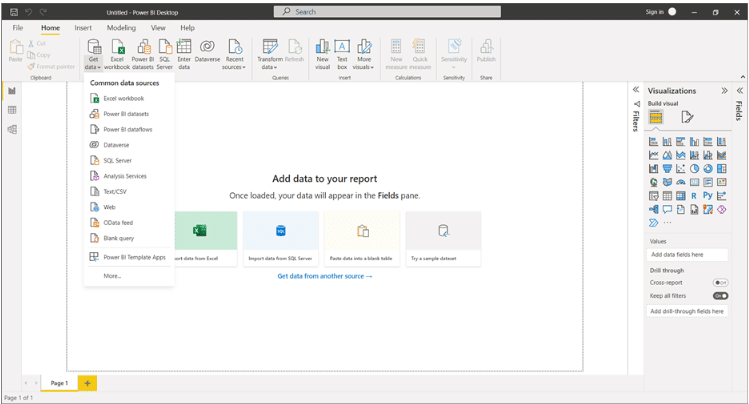
- まず、"Home "タブで "Get Data" > "From Database "を選択し、"Analysis Services"を選択する。
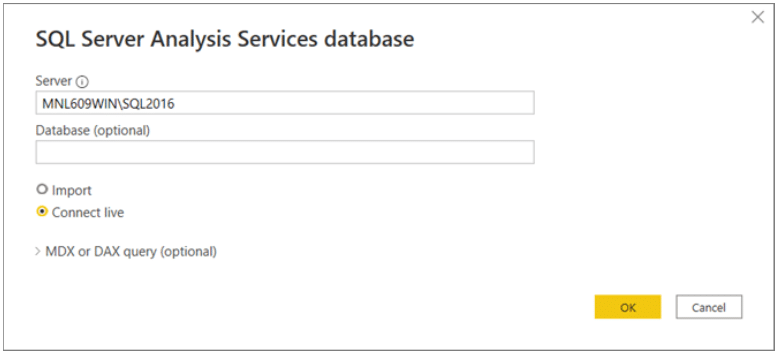
- SQL Server Analysis Servicesデータベース・モーダルで、サーバーを指定し、"OK"をクリックする。
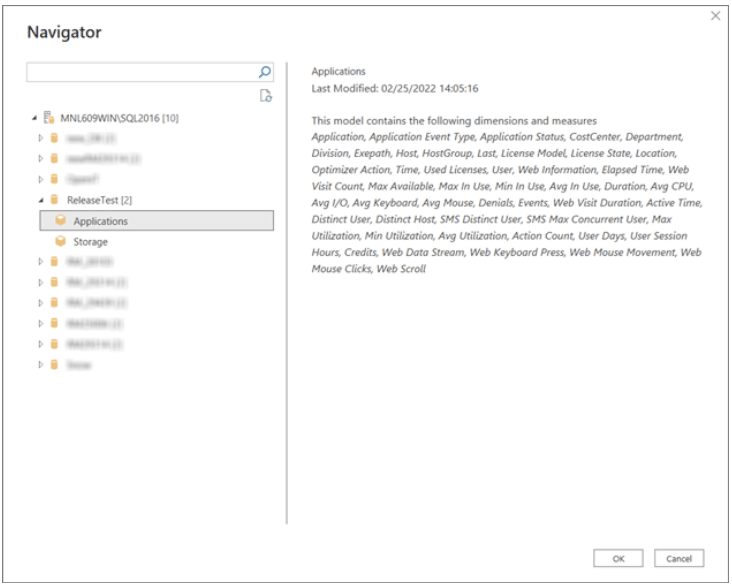
- 次に、必要なデータベースとキューブを選択してから、再度 "OK" をクリックします。
- 新しい可視化を開始し、基本的なレポートを作成するには、キャンバス上にフィールドをドラッグします。

テーブルやビューからレポート・キャンバスにフィールドをドラッグ・アンド・ドロップし、フィルター、スライサー、フォーマット・オプションを適用し、チャート、マップ、テーブル、マトリックスなどの様々なビジュアライゼーションから選択することができます。
また、DAX言語を使用して計算列やメジャーを作成し、データに対して高度な計算や集計を実行することもできます。
レポートを保存するには、[ファイル] > [名前を付けて保存]をクリックし、名前を付けます。レポートをPDFまたはPowerPointファイルとしてエクスポートすることもできます。

タブロー
指示に従って、Tableau をOpen iT Analysis Server に接続し、カスタム・レポートを作成します:
- Tableau Desktop を開き、データソースとしてOpen iT Connectorを選択します。
- Open iT Analysis Server がインストールされているサーバー名とデータベース名を入力します。接続]をクリックします。
- データベースからアプリケーションファイルを選択し、データペインにドラッグします。今すぐ更新]をクリックします。
- データがロードされるのを待ち、ワークシートとダッシュボードの作成を開始する。
- ワークブックを保存し、Tableau Server または Tableau Online に公開します。
- Tableau Server または Tableau Online にサインインして、ワークブックを表示し、組織内の他の人と共有します。
Tableauの機能と関数を使用して、データ分析と可視化をカスタマイズできます。さまざまな種類のチャート、フィルター、計算、パラメーターを使用して、さまざまな方法でデータを探索できます。
ワークブックをあなたのブランディングやスタイルの好みに合わせてフォーマットすることもできます。ビジュアライゼーションの色、フォント、ボーダー、背景、その他の要素を変更できます。
Open iT は、Power BIを使用して生の利用データを実用的な洞察に変換する方法についてのライブウェビナーを開催しています。今すぐウェビナーにお申し込みください!