





Este documento fornece informações sobre como navegar e utilizar corretamente a página Metadados da Licença na guia Administração do Open iT Analysis Server.
Introdução #
A página Metadados da Licença contém várias funcionalidades para configurar e definir os detalhes dos servidores de licença exibidos no Portal do Monitor de Licenças. A página só é visível para utilizadores com direitos administrativos no Open iT Analysis Server e está oculta por predefinição.
Ativação dos metadados da licença #
Siga estas etapas para ativar ou desativar os metadados da licença:
- Ir para o Configuração da interface Web do Analysis Server.

Figura 1. Administração do servidor de análise: metadados da licença - Localize a chave de configuração Root.Web.LicenseMetaData.
- Clique no valor e este deve transformar-se num menu pendente.
- Definir o valor como True para ativar.
- Clique em Guardar para aplicar as alterações.
- Clique no botão Reiniciar a sessão localizado na parte inferior da tabela de configuração.

Figura 2. Administração do Analysis Server: Reiniciar sessão - Confirmar que o Metadados da licença A guia está visível e acessível em Administração tab.

Figura 3. Administração do servidor de análise: guia Metadados da licença


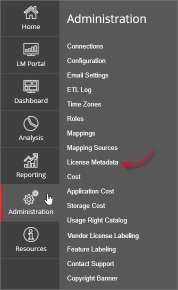
A página Metadados da licença deve ser exibida.
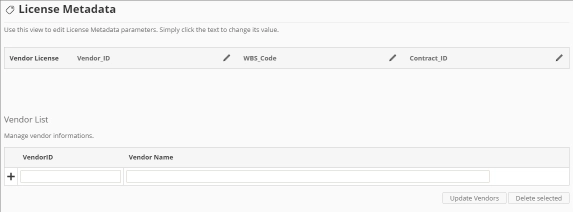
Figura 4. Página de metadados da licença de administração do servidor de análise
Requisitos #
Certifique-se de que cumpre os seguintes requisitos antes de utilizar a página Metadados da licença:
- A base de dados SQL foi criada com sucesso.
- Os dados do estado da licença estão disponíveis na base de dados do servidor central.
- Os dados devem ser carregados e processados.
- Preparou uma lista de produtos com vários metadados de licença para configuração.
- Direitos administrativos do utilizador atual da Web.
Atualização do nome detalhado #
Existem três detalhes inicialmente incluídos que podem ser configurados: Vendor_ID, WBS_Code e Contract_ID. Esses campos são personalizáveis e podem ser atualizados para cumprir com as informações necessárias no Portal do Monitor de Licenças.
Siga estas instruções para atualizar o nome do detalhe:
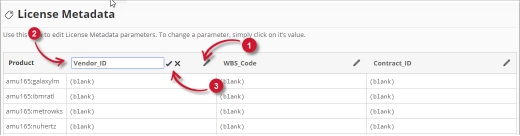
Figura 5. Detalhes da edição dos metadados da licença na administração do servidor de análise
- No cabeçalho da coluna da tabela Metadados da licença, clique no ícone de edição. Isto deve transformar-se numa caixa de texto.
- Modifique o valor para o nome do detalhe desejado.
- Clique no símbolo de verificação para guardar as alterações.
Adicionar fornecedores #
Siga estas instruções para adicionar fornecedores:
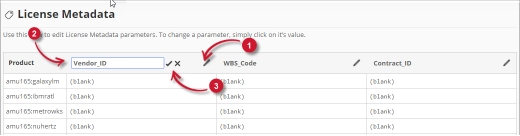
Figura 6. Metadados da licença de administração do servidor de análise: adicionar fornecedores
- No painel Lista de fornecedores, localizado abaixo da tabela Metadados da licença, digite o valor desejado na coluna Vendor_ID.
- Na coluna Nome do fornecedor, digite o nome do fornecedor associado ao Vendor_ID.
- Clique no símbolo de adicionar (+) para adicionar o item à lista.
Atualização de fornecedores #
Siga estas instruções para atualizar os fornecedores na Lista de Fornecedores:
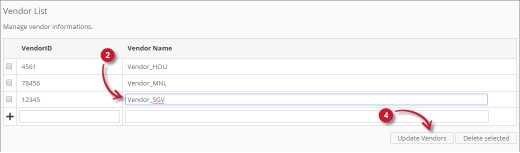
Figura 7. Metadados da licença de administração do servidor de análise: edição de fornecedores
- Na lista, procure o item a ser atualizado.
- Clique no valor da coluna e ele deverá transformar-se numa caixa de texto.
- Modifique o valor.
- Clique no botão Atualizar fornecedores para aplicar as alterações.
Eliminar fornecedores #
Siga estas instruções para eliminar fornecedores:
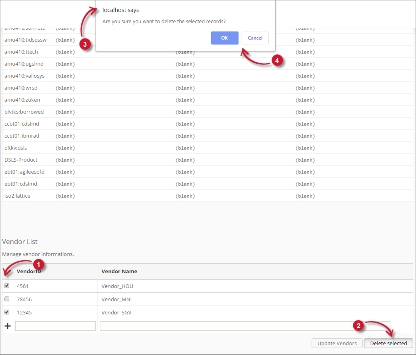
Figura 8. Metadados da licença de administração do servidor de análise – Eliminação de fornecedores
- Na lista, clique na caixa de seleção do item a ser eliminado.
- Clique no botão Apagar selecionados.
- Deve aparecer uma mensagem a confirmar a eliminação do item.
- Clique em OK para continuar.
A lista deve ser atualizada automaticamente.
Configurar metadados de licença #
Siga estas instruções para configurar os detalhes em Metadados da Licença:
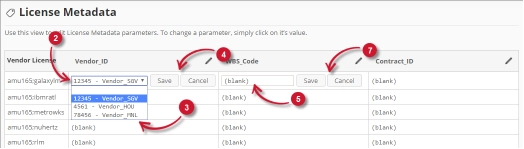
Figura 9. Administração do servidor de análise Configurando metadados de licença
- Na lista Licenças do fornecedor, procure o servidor de licenças a ser configurado.
- Na coluna Vendor_ID, clique no valor e ele deverá transformar-se numa lista suspensa. Observe que as opções são os fornecedores adicionados à lista de fornecedores.
- Escolha entre as opções.
- Clique em Guardar para aplicar as alterações.
- Nas duas últimas colunas, clique nos valores e eles devem transformar-se em caixas de texto.
- Modifique o valor.
- Clique em Guardar para aplicar as alterações.
Verificação #
Os metadados da licença configurados são refletidos no Portal do Monitor de Licenças. Siga estas instruções para verificar os detalhes:
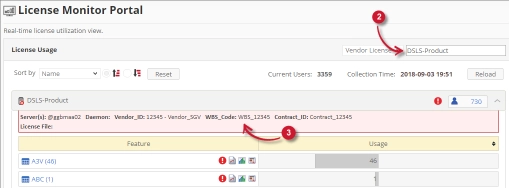
Figura 10. Metadados da licença de administração do servidor de análise: verificação
- Acesse a página do Portal LM.
- Procure a Licença do Fornecedor configurada na página Metadados da Licença.
- Clique no nome da licença do fornecedor para mostrar os metadados do servidor de licenças. Observe que os detalhes configurados são exibidos.
Resolução de problemas #
Esta parte fornece uma possível solução alternativa para um problema conhecido na página Metadados da licença.
Página de erro apresentada quando o acesso não é feito no localhost #
Haverá momentos em que, ao aceder à página Metadados da Licença remotamente ou através do nome do host, será exibida uma página de erro.
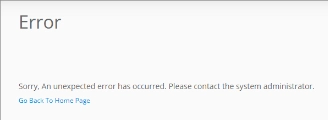
Figura 11. Página de metadados da licença do servidor de análise Resolução de problemas: Página de erro exibida
Utilize as seguintes sugestões para solucionar este problema:
Verificar se existem erros na consola do navegador Web #
Siga estas instruções para verificar se existem erros na consola do navegador Web:
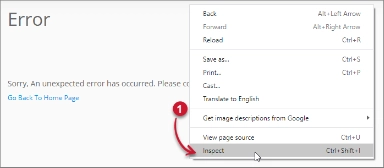
- No Metadados da licença página, clique com o botão direito do rato em qualquer parte da página e selecione Inspecionar.

Figura 12. Página de metadados da licença do servidor de análise Resolução de problemas: Página de erro exibida – Inspecionar
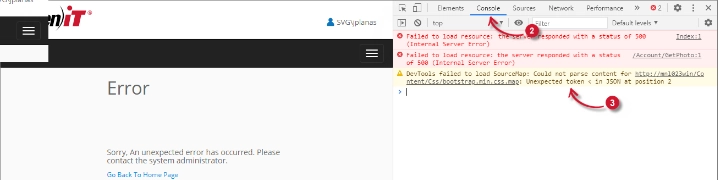
O Ferramentas para programadores deve aparecer. - Escolher Consola a partir dos separadores disponíveis da ferramenta.
A consola lista as transacções do navegador Web, incluindo os erros.
Figura 13. Página de metadados da licença do servidor de análise Resolução de problemas: Página de erro exibida – Consola - Por vezes, os erros na consola podem ser demasiado técnicos. Para obter uma resposta imediata, envie os detalhes do erro para support@openit.com.
Aceder ao sítio web através de localhost #
Para ver a mensagem de erro real do servidor, vá para a máquina que aloja o Servidor de Análise Open iT e, em seguida, aceda a http://localhost num browser. A mensagem de erro real deve ser exibida.