


Introducción
La página «Configuración del correo electrónico » contiene diversas opciones de configuración para el envío de mensajes de correo electrónico y alertas.
Siga estas instrucciones para navegar hasta la página:
- Abra la interfaz web de Open iT Analysis Server mediante un navegador web.
- Pasa el cursor por encima de la pestaña «Administración ». Espera a que aparezcan las subpestañas.
- Haz clic en la pestaña «Configuración del correo electrónico ».
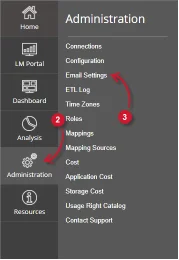
Figura 1. Administración de Analysis Server: Navegación por la configuración del correo electrónico
Debería aparecer la página «Configuración del correo electrónico ».
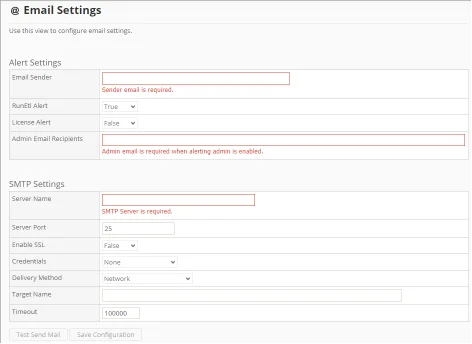
Figura 2. Administración del servidor de análisis: página de configuración del correo electrónico
Requisitos
Asegúrate de cumplir los siguientes requisitos antes de utilizar la página «Configuración del correo electrónico »:
- La base de datos SQL se ha creado correctamente.
- Derechos administrativos del usuario web actual.
- Open iT El servicio de alertas está en funcionamiento.
- Datos del servidor SMTP para la configuración de SMTP.
Configuración de los ajustes de alertas #
Utiliza esta opción para definir la configuración de los servicios de alertas. Sigue estas instrucciones para configurar correctamente las alertas:

Figura 3. Configuración del correo electrónico de administración de Analysis Server: alertas
- Introduce una dirección de correo electrónico válida en el campo «Remitente del correo electrónico ». Este campo es obligatorio.
- Establece la opción «RunEtl Alert» en «True» para activar o en «False » para desactivar el envío de alertas relacionadas con el procesamiento diario de datos de un servidor de análisis de « Open iT ».
- Establece la opción «Alerta de licencia» en «True» para activarla o en «False» para desactivarla, con el fin de controlar el envío de alertas sobre el estado de la licencia de Open iT .
- Introduce direcciones de correo electrónico válidas de los destinatarios de las alertas activadas en el campo de texto «Destinatarios del correo electrónico de administración ». Separa los elementos con una coma (,). Este campo es obligatorio cuando se activa alguna de las alertas.
Configuración de los parámetros SMTP #
Utiliza esta opción para definir los parámetros del Protocolo simple de transferencia de correo (SMTP) para el envío de alertas por correo electrónico. Sigue estas instrucciones para configurar correctamente los parámetros:
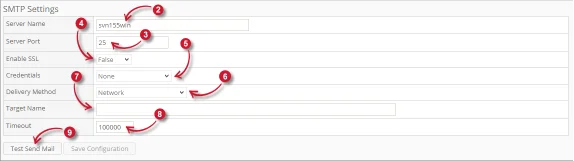
Figura 4. Configuración del correo electrónico de la administración de Analysis Server: SMTP
- Asegúrate de que los ajustes de alertas estén correctamente configurados.
- Introduce el nombre de host o la dirección IP válidos en el cuadro de texto «Nombre del servidor ».
- Introduce el número de puerto SMTP válido y abierto en el campo de texto «Puerto del servidor ». El valor predeterminado es 25.
- Establece la opción «Habilitar SSL» en «True» para activar el envío de correo electrónico a través del protocolo SSL ( Secure Sockets Layer ) o en «False» para desactivarlo.
- Elige entre las Credenciales opciones que se utilizarán para autenticar el envío de mensajes de correo electrónico.
- Ninguna: no se utilizan credenciales.
- Personalizado: introduce el nombre de usuario y la contraseña válidos que se vayan a utilizar.
- Credenciales predeterminadas: utiliza System.Net.Credentials.DefaultCredentials de la aplicación « Open iT Analysis Server».
- Cuenta de servicio: utiliza las credenciales con las que se ejecuta el servicio.
- Elige entre las Forma de envío opciones que se deben utilizar al enviar alertas por correo electrónico.
- Red: los mensajes se envían a través de la red a un servidor SMTP.
- SpecifiedPickupDirectory: los mensajes se copian en la ubicación del directorio de recogida especificada.
- PickupDirectoryFromIis: los mensajes se copian al directorio de recogida que utiliza un servidor local de Internet Information Services (IIS) para su entrega.
- Indica el nombre del proveedor de servicios (SPN) utilizado para la autenticación cuando el servidor SMTP utiliza protección ampliada o cuenta con un servidor de retransmisión en el cuadro de texto «Nombre de destino ». Este campo es opcional.
- Introduce en el cuadro de texto «Tiempo de espera» el tiempo que tarda el proceso de envío de mensajes de correo electrónico en alcanzar el tiempo de espera. El valor predeterminado es 100 000 segundos.
- Haz clic en «Enviar correo de prueba » para comprobar la configuración indicada.
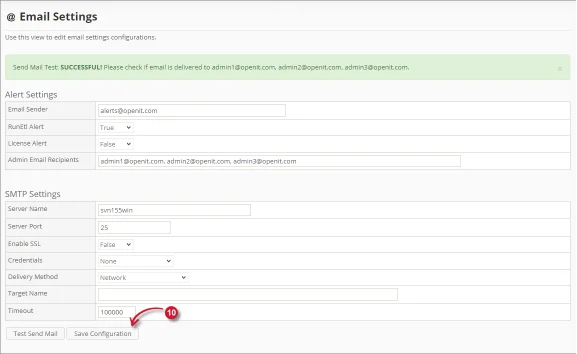
Figura 5. Configuración del correo electrónico de administración de Analysis Server: envío de correo de prueba
Espera a que aparezca el mensaje de validación. Los destinatarios configurados deberían recibir un correo de prueba.
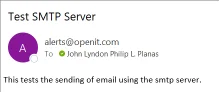
Figura 6. Configuración del correo electrónico de administración del servidor de análisis: correo de prueba enviado y recibido
Cuando haya terminado, haz clic en el botón «Guardar configuración » para guardar los ajustes. Espera a que aparezca el mensaje de confirmación.

Figura 7. Configuración del correo electrónico de administración de Analysis Server: Guardar configuración
Solución de problemas n. º
En esta sección se ofrece una posible solución alternativa para un problema conocido en la página «Configuración del correo electrónico ».
Error en la prueba de envío de correo #
Habrá ocasiones en las que el envío del correo de prueba falle y el mensaje de notificación muestre un mensaje de error:
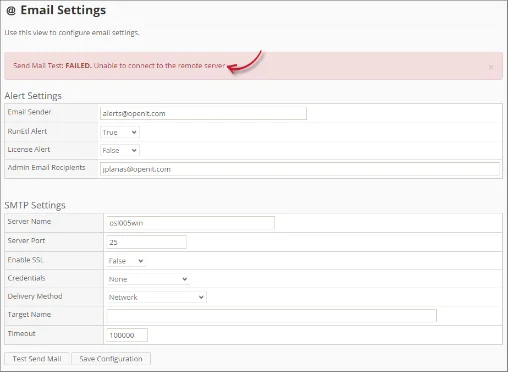
Figura 8. Solución de problemas de la página de configuración de correo electrónico de Analysis Server: error en la prueba de envío de correo
Utiliza la siguiente lista de comprobación para solucionar los problemas:
- Asegúrate de que el nombre del servidor sea válido y correcto.
- Asegúrate de que el puerto del servidor utilizado esté accesible y abierto para las transacciones SMTP.
- Asegúrate de que la cuenta de servicio tenga los permisos necesarios para acceder al servidor SMTP.
- Asegúrate de que la dirección de correo electrónico del remitente sea válida y correcta.
- Ajusta el valor del tiempo de espera para alargar la duración.
Para obtener asistencia o más ayuda sobre la configuración, póngase en contacto con el equipo de asistencia deOpen iT .
Para obtener referencias adicionales, puede visitar nuestra página de Documentación.