


Introduction
La page « Paramètres de messagerie » contient divers paramètres de configuration pour l'envoi d'e-mails et d'alertes.
Suivez les instructions suivantes pour accéder à la page :
- Ouvrez l'interface web de l'Open iT Analysis Server à l'aide d'un navigateur web.
- Passez le curseur sur l'onglet « Administration ». Attendez que les sous-onglets s'affichent.
- Cliquez sur l'onglet « Paramètres de messagerie ».
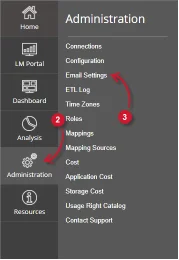
Figure 1. Administration d'Analysis Server : navigation dans les paramètres de messagerie électronique
La page « Paramètres de messagerie » devrait s'afficher.
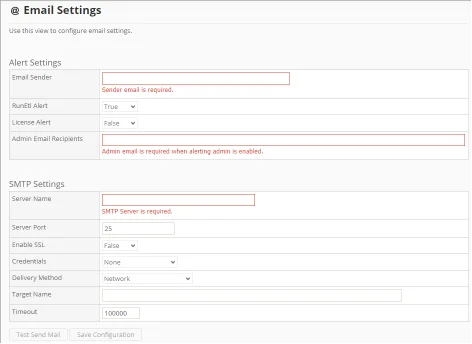
Figure 2. Administration d'Analysis Server : page « Paramètres de messagerie »
Exigences #
Assurez-vous de respecter les conditions suivantes avant d'utiliser la page « Paramètres de messagerie » :
- La base de données SQL est créée avec succès.
- Droits d'administration de l'utilisateur Web actuel.
- Le service « Open iT Alerts » est en cours d'exécution.
- Informations relatives au serveur SMTP pour la configuration SMTP.
Configuration des paramètres d'alerte #
Utilisez cette fonction pour définir les paramètres des services d'alerte. Suivez ces instructions pour configurer correctement les alertes :

Figure 3. Paramètres de messagerie de l'administration d'Analysis Server – Alerte
- Indiquez une adresse e-mail valide dans le champ « Expéditeur ». Ce champ est obligatoire.
- Définissez l'option « RunEtl Alert » sur « True » pour activer l'envoi d'alertes concernant le traitement quotidien des données par Open iT Analysis Server, ou sur « False » pour le désactiver.
- Définissez l'option « License Alert » sur « True » pour activer l'envoi d'alertes concernant l'état de la licence Open iT, ou sur « False » pour le désactiver.
- Indiquez les adresses e-mail valides des destinataires des alertes activées dans le champ « Destinataires e-mail de l'administrateur ». Séparez les adresses par une virgule (,). Ce champ est obligatoire dès lors qu'une des alertes est activée.
Configuration des paramètres SMTP #
Utilisez cette section pour définir les paramètres du protocole SMTP ( Simple Mail Transfer Protocol ) destinés à l'envoi d'alertes par e-mail. Suivez ces instructions pour effectuer correctement la configuration :
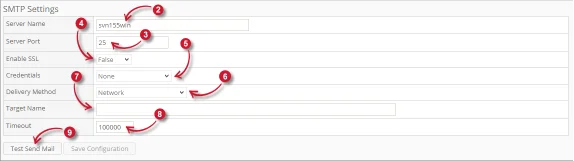
Figure 4. Paramètres de messagerie pour l'administration du serveur d'analyse – SMTP
- Assurez-vous que les paramètres d'alerte sont correctement configurés.
- Saisissez un nom d'hôte ou une adresse IP valide dans la zone de texte « Nom du serveur ».
- Indiquez le numéro de port SMTP valide et accessible dans la zone de texte « Port du serveur ». La valeur par défaut est 25.
- Définissez l'option « Enable SSL » sur « True » pour activer l'envoi d'e-mails via le protocole SSL ( Secure Sockets Layer ) ou sur « False » pour le désactiver.
- Faites votre choix parmi les Diplômes et qualifications options à utiliser pour authentifier l'envoi de messages électroniques.
- Aucun – aucun identifiant n'est utilisé.
- Personnalisé: indiquez le nom d'utilisateur et le mot de passe valides à utiliser.
- Identifiants par défaut: utilisez l'objet `System.Net.Credentials.DefaultCredentials` de l'application Open iT Analysis Server.
- Compte de service: utilisez les identifiants utilisés pour l'exécution du service.
- Faites votre choix parmi les Mode de livraison options à utiliser lors de l'envoi d'alertes par e-mail.
- Réseau: les messages sont envoyés via le réseau vers un serveur SMTP.
- SpecifiedPickupDirectory – les messages sont copiés dans le répertoire de collecte indiqué.
- PickupDirectoryFromIis – les messages sont copiés dans le répertoire de collecte utilisé par un serveur IIS (Internet Information Services) local pour leur distribution.
- Indiquez le nom du fournisseur de services (SPN) utilisé pour l'authentification lorsque le serveur SMTP utilise une protection étendue ou dispose d'un serveur de relais, dans la zone de texte « Nom de la cible ». Cette étape est facultative.
- Indiquez dans la zone de texte « Timeout » la durée pendant laquelle le processus d'envoi des e-mails reste en attente avant de déclencher un délai d'expiration. La valeur par défaut est de 100 000 secondes.
- Cliquez sur « Test d'envoi d'e-mail » pour tester la configuration indiquée.
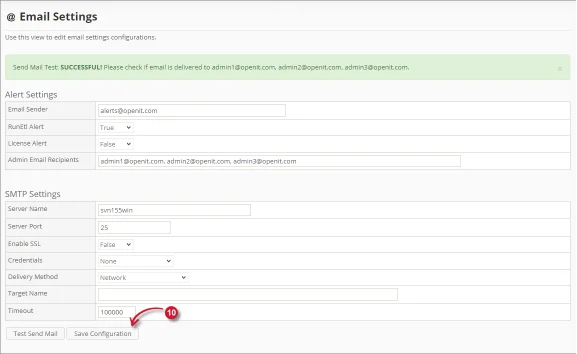
Figure 5. Paramètres de messagerie de l'administration d'Analysis Server – Envoi d'un e-mail test
Attendez que le message de validation s'affiche. Les destinataires configurés devraient recevoir un e-mail de test.
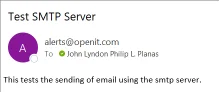
Figure 6. Paramètres de messagerie de l'administration du serveur d'analyse – E-mail d'essai envoyé et reçu
Une fois l'opération terminée, cliquez sur le bouton « Enregistrer la configuration » pour enregistrer les paramètres. Attendez que le message de confirmation s'affiche.

Figure 7. Paramètres de messagerie de l'administration du serveur d'analyse – Enregistrer la configuration
Dépannage #
Cette section présente une solution de contournement possible pour un problème connu sur la page « Paramètres de messagerie ».
Échec du test d'envoi d'e-mail #
Il peut arriver que l'envoi d'un e-mail de test échoue et que le message de notification affiche un message d'erreur :
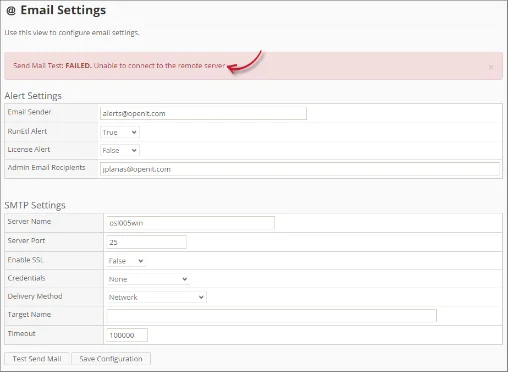
Figure 8. Dépannage de la page « Paramètres de messagerie » de l'Analysis Server : échec du test d'envoi d'e-mail
Utilisez la liste de contrôle suivante pour résoudre ces problèmes :
- Assurez-vous que le nom du serveur est valide et correct.
- Assurez-vous que le port du serveur utilisé est accessible et ouvert pour les transactions SMTP.
- Assurez-vous que le compte de service dispose des droits d'accès au serveur SMTP.
- Assurez-vous que l'adresse e-mail de l'expéditeur est valide et correcte.
- Modifiez la valeur du délai d'expiration pour allonger la durée.
Pour obtenir de l'aide ou un support de configuration supplémentaire, veuillez contacter votre équipe de support Open iT.
Pour des références supplémentaires, vous pouvez consulter notre page Documentation.