





This document provides information on how to navigate and use the Partition Manager page under the Open iT Analysis Server Administration tab.
Introduction #
The Partition Manager page contains various functionalities to configure and setup available data partitions in the OLAP cube. The page is only visible to users with Open iT Analysis Server Administrative rights and is hidden by default.
Only SQL Server editions Developer, Enterprise and Business Intelligence (BI) support data partitions.
Enabling Cube Partitioning #
Follow these steps to enable or disable OLAP cube partitioning:
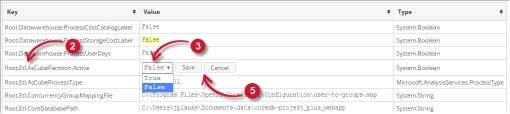
- Go to the Configuration page of Analysis Server web interface.
- Locate the configuration key Root.Etl.AsCubePartition.Active.
- Cliquez sur la valeur et elle devrait se transformer en liste déroulante.
- Réglez la valeur sur True pour l'activer.
- Cliquez sur Enregistrer pour appliquer les modifications.
- Cliquez sur le bouton Session de réinitialisation situé en bas du tableau de configuration.

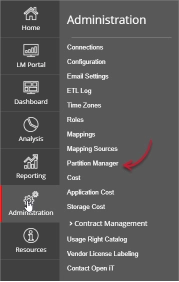
Figure 2. Administration d'Analysis Server : Réinitialisation de la session - Confirmer que le Partition Manager L'onglet est visible et accessible sous le Administration tabulation.

Figure 3. Analysis Server Administration: Partition Manager Tab

The Partition Manager page should be displayed.
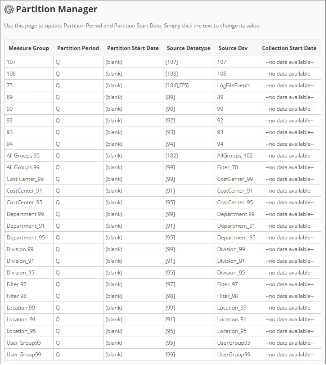
Use the following descriptions to properly configure the Partition Start Date of each item:
- Measure Group – the name that uniquely identifies the predefined measure group in the OLAP cube.
- Partition Period – the predefined period included in the data partition of the measure group.
- Partition Start Date – the start date that identifies the start of data partition of the measure group.
- Source Datatype – the source of the measure group from the Open iT data aggregations.
- Source Dsv – the name of the source table or view in the SQL database.
- Collection Start Date – the start date of the available data.
Exigences #
Ensure to meet the following requirements before using the Partition Manager page:
- Les bases de données SQL et OLAP sont créées avec succès.
- Prepared list of start dates of each partition for configuration.
- Droits d'administration de l'utilisateur Web actuel.
Configuring Partition Manager #
Follow these instructions to configure the Partition Start Date:
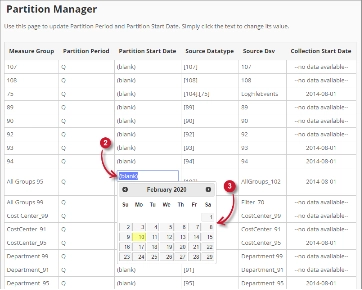
- Look for the measure group to configure from the list.
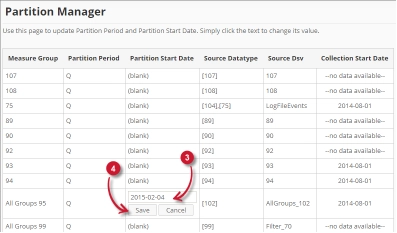
- Click the Partition Start Date column value. This should transform into textbox and a calendar should appear.
- Choose from the calendar the desired start date of the partition.

Figure 6. Analysis Server Administration Save Partition Manager
Once clicked, the selected date should automatically be posted in the textbox with the format YYYY-MM-DD. - Cliquez sur Enregistrer pour appliquer les modifications.
Dépannage #
This part provides the possible work around for a known issue in the Partition Manager page.
Page d'erreur affichée lorsque l'accès ne se fait pas dans localhost #
There will be times that when accessing the Partition Manager page remotely or via hostname, it displays an error page.
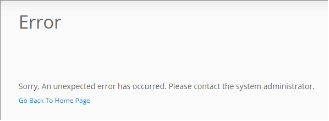
Utilisez les suggestions suivantes pour résoudre ce problème :
Vérifier les erreurs de la console du navigateur Web #
Suivez ces instructions pour vérifier les erreurs dans la console du navigateur web :
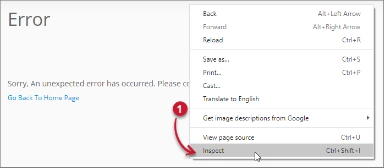
- In the Partition Manager cliquez avec le bouton droit de la souris n'importe où dans la page et choisissez Contrôler.

Figure 8. Analysis Server Partition Manager Page Troubleshooting: Error page displayed – Inspect
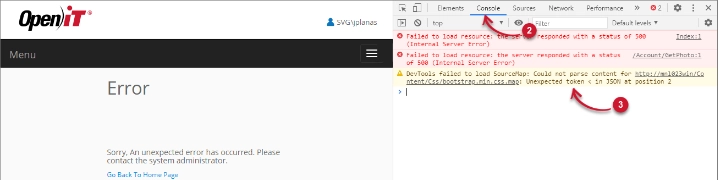
Les Outils du développeur devrait apparaître. - Choisir Console dans les onglets disponibles de l'outil.
La console répertorie les transactions du navigateur web, y compris les erreurs.
Figure 9. Analysis Server Partition Manager Page Troubleshooting: Error page displayed – Console - Errors in the console may sometimes be too technical, for immediate response, send the error detail to support@openit.com.
Accéder au site web via localhost #
Pour voir le vrai message d'erreur du serveur, allez sur la machine qui héberge l'Open iT Analysis Server, puis accédez à http://localhost dans un navigateur. Le vrai message d'erreur devrait s'afficher.