





This document provides information on how to navigate and use the License Cost page of Contract Management under the Open iT Analysis Server Administration tab.
導入#
The License Cost page contains various functionalities to manage the list of applications with cost under a specific contract for contract management. The page is only visible to users with Administrative rights to Open iT Analysis Server.
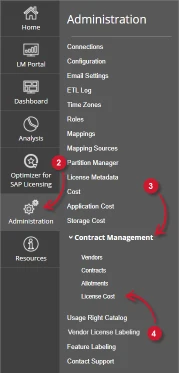
以下の指示に従ってページに移動してください:
- Web ブラウザを使用して、Open iT Analysis Server Web インターフェイスを開きます。
- 管理」タブにカーソルを合わせる。サブタブが表示されるまで待つ。
- Click the Contract Management tab to display all the sub-tabs.
- をクリックする。 License Cost sub-tab.

Figure 1. Analysis Server Administration: Contract Management – License Cost – Navigation
について License Cost ページが表示されなければならない。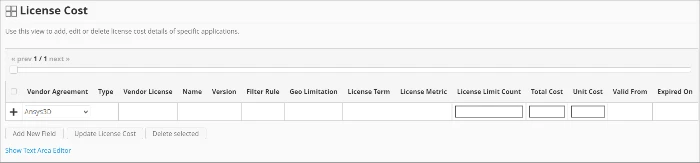
Figure 2. Analysis Server Administration: Contract Management – License Cost Page
Use the following descriptions of the columns for proper configuration:
- Vendor Agreement – the specific Contract the application cost belongs. The list is available when there are entries on the Contracts page
- Type – the specific type of application
- Vendor License – the vendor name of the application
- Name – the specific name of the application
- Version – the specific version of the application
- Filter Rule – the specific criteria used to filter the included data
- Geo Limitation – the geological scope of the application cost
- License Term – the criteria used as basis for license inclusion
- License Metric – the criteria used as a basis for computing license usage consumption. The following values are accepted:
- DU-1H – Distinct User per Hour
- DU-1D – Distinct User per Day
- DU-1M – Distinct User per Month
- DU-1Q – Distinct User per Quarter
- DU-1Y – Distinct User per Year
- DH-1H – Distinct Host per Hour
- DH-1D – Distinct Host per Day
- DH-1M – Distinct Host per Month
- DH-1Q – Distinct Host per Quarter
- DH-1Y – Distinct Host per Year
- License Limit Count – the number of licenses allowed for the application
- Total Cost – the total cost of the application computed as the product of total usage and unit cost
- Unit Cost – the cost of the specific application
- Valid From – the start date of validity of the allotment
- Expired On – the end date of validity of the allotment
要件 #
The following are the required things to consider to properly utilize the License Cost page in Open IT Analysis Server.
- SQLデータベースが正常に作成されました。
- Enable Contract Management using the the Configuration page.
- Added Contracts using the Contracts page.
- List of license applications with cost details.
- Prepared file containing all license applications with cost when using the Text Area Editor.
- 現在のウェブユーザーの管理権限。
レコードの追加 #
Follow these instructions to add a license cost entry:
- In the License Cost table, choose among the available Vendor Agreement.
- Click the Type column. This should transform into a textbox. Provide the specific application type.
- Repeat the steps with the other columns – Vendor License, 名前, バージョン, Filter Rule, Geo Limitation, License Term, License Metric, License Limit Count, Total Count, と Unit Cost.

Figure 3. Analysis Server Administration: License Cost- Adding Record - Choose the date range for the validity of the application cost.
- Click the add symbol (+) located at the first column of the row.
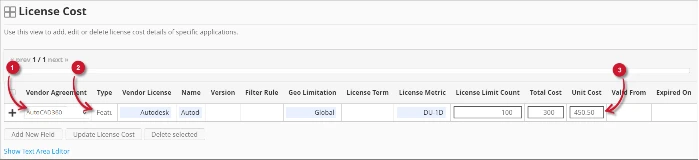
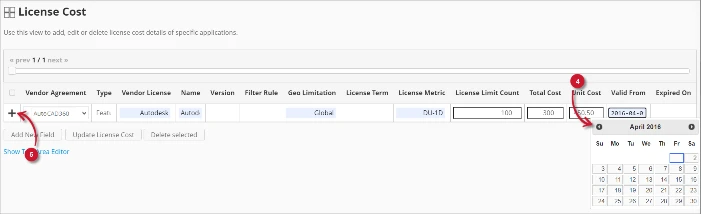
Figure 4. Analysis Server Administration: License Cost – Adding Record
The list of license cost should include the newly added item.
Adding a New Field #
Follow these instructions to add a new column for License Cost details:
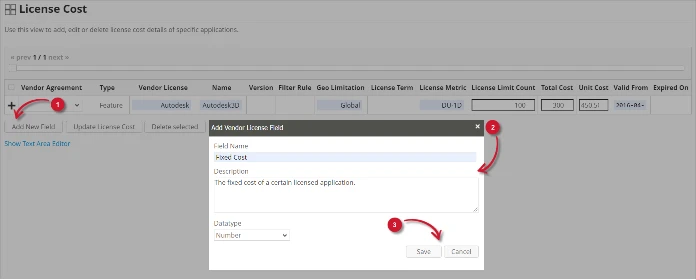
- At the bottom of the License Cost table, click the Add New Field button.
The Add Vendor License Field dialog should appear. - Provide the following details.
- Field Name – a descriptive name of the field
- Description – a brief description to describe the field
- Datatype – the type of data the field accepts
- クリック セーブ を続ける。

Figure 5. Analysis Server Administration: License Cost – Adding New Field
The License Cost table should include the newly added column.
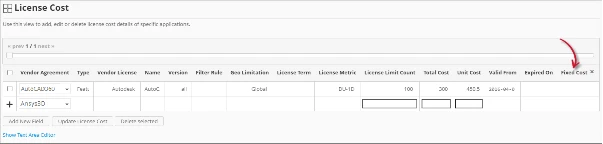
Figure 6. Analysis Server Administration: License Cost – Added New Field
Updating a Record #
Follow these instructions to update a specific record:
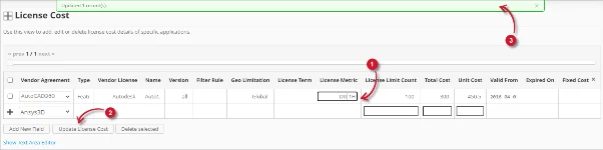
- In the License Cost table, click the value of the column to update. This should transform to a textbox.
- Click the Update License Cost button at the bottom of the License Cost table.
- A notification message should appear at the top of the page showing the status of the update.

Figure 7. Analysis Server Administration: License Cost – Updating Record
レコードの削除 #
Follow these instructions to delete record(s) from the License Cost table:
- Click the corresponding checkbox of the record to be deleted.
- Click the Delete selected button at the bottom of the table.
- 確認メッセージが表示されるはずです。
- クリック セーブ を続ける。

Figure 8. Analysis Server Administration: License Cost – Deleting Record
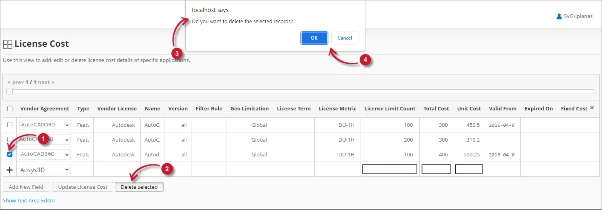
The License Cost table should automatically be updated.
テキストエリア・エディター #
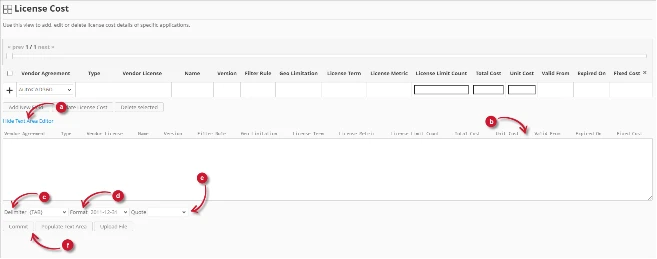
図 9.分析サーバー管理テキスト・エリア・エディタの詳細
テキスト・エリア・エディターの詳細 #
テキスト・エリア・エディタは、リスト内のレコードを追加、編集、削除するもう一つの方法である。エディタには以下のコンポーネントがあります:
- Toggle link- テキスト・エリア・エディタの表示を切り替えます。
- テキストエリア- レコードを貼り付けて操作するエリア。
- 区切り文字- レコードの各項目の区切り文字として使用する文字。
- Format- 日付に使用するフォーマット。
- Quote- レコードの各項目を区切るために使用する引用符。
- コマンド:
- コミット- テキストエリアで行った変更を保存します。
- Populate Text Area – retrieve all the records from the table and display it in the text area.

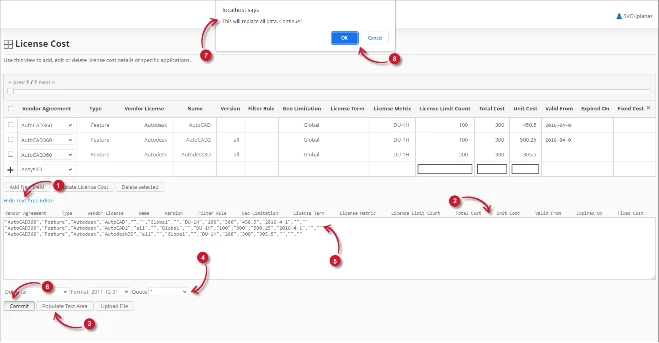
図 10.テキスト・エリア・エディタを使用した分析サーバー管理
テキストエリア・エディタの使用 #
テキストエリア・エディターの使い方は以下の通りです:
テキスト・エリア・エディターが表示されます。- Populate Text Areaボタンをクリックします。テキスト・エリア・エディターに入力されます。
- Modify the records as desired. Use the components for Delimiter, Format and Quote.
To add a record, simply add a new line.
To delete a record, simply delete the entire row of the record. - 選択した書式を適用するには、「テキストエリアに入力」をクリックします。選択した区切り文字、書式、引用符がテキスト・エリア・エディターで適用されることに注意してください。
変更の適用を確認する警告メッセージが表示されるはずです。
リストは自動的に更新されるはずです。
Uploading a Source File #
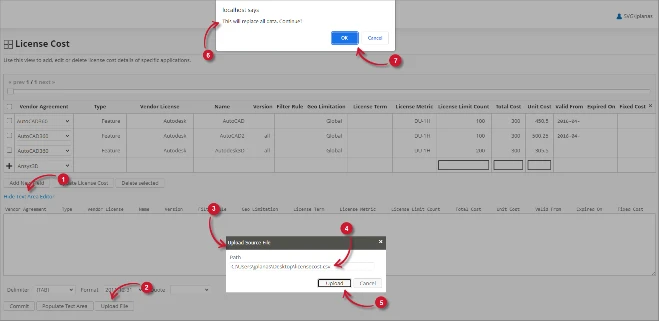
Follow these instructions to upload a prepared source file of License Cost details:
- Click the Toggle Link of the Text Area Editor.
- At the bottom of the page, click the Upload File button.
- The Upload Source File dialog should appear.
- Provide the valid path of the source file. The UNC path (\\path_to_file) is accepted.
- Click the Upload button to continue.
- A confirmation message of the upload process should appear.
- クリック OK を続ける。

Figure 11. Analysis Server Administration: License Cost – Upload File
トラブルシューティング #
This part provides the possible work around for a known issue in the License Cost page.
ローカルホスト以外からのアクセス時に表示されるエラーページ #
There will be times when accessing the License Cost page remotely or via hostname, it displays an error page.
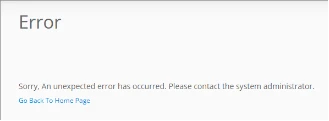
Figure 12. Analysis Server License Cost Page Troubleshooting: Error page displayed
この問題のトラブルシューティングには、以下の提案を使用してください:
ウェブブラウザのコンソールエラーのチェック #
以下の手順に従って、ウェブブラウザのコンソールでエラーをチェックしてください:
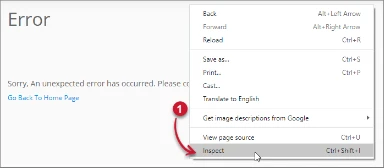
- の中で License Cost ページ内の任意の場所で右クリックし 検査.

Figure 13. Analysis Server License Cost Page Troubleshooting: Error page displayed – Inspect
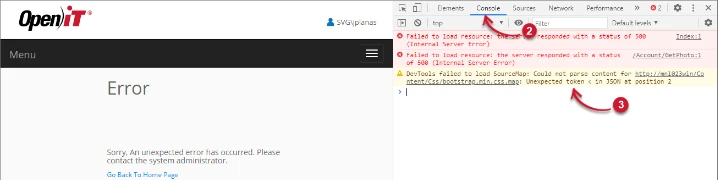
について 開発ツール が現れるはずだ。 - 選ぶ コンソール ツールの利用可能なタブから選択します。
コンソールは、エラーを含むウェブ・ブラウザのトランザクションを一覧表示する。
Figure 14. Analysis Server License Cost Page Troubleshooting: Error page displayed – Console - コンソールのエラーは専門的すぎる場合があります。 support@openit.com.
ローカルホストからウェブサイトにアクセスする #
サーバーの実際のエラーメッセージを確認するには、Open iT Analysis Server をホストしているマシンに移動し、ブラウザでhttp://localhost にアクセスします。実際のエラーメッセージが表示されるはずです。