




This document provides information on how to navigate and use the License Cost page of Contract Management under the Open iT Analysis Server Administration tab.
Introdução #
The License Cost page contains various functionalities to manage the list of applications with cost under a specific contract for contract management. The page is only visible to users with Administrative rights to Open iT Analysis Server.
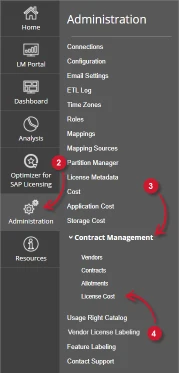
Siga estas instruções para navegar para a página:
- Abra a interface web do Open iT Analysis Server usando um navegador da web.
- Passe o cursor sobre o separador Administração. Aguarde até aparecerem as sub-abas.
- Click the Contract Management tab to display all the sub-tabs.
- Clique no botão License Cost sub-tab.

Figure 1. Analysis Server Administration: Contract Management – License Cost – Navigation
O License Cost deve ser apresentada.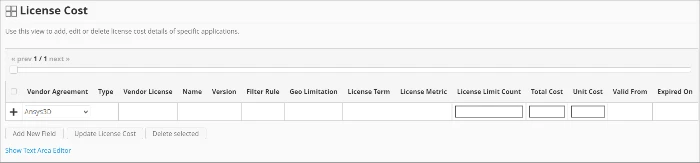
Figure 2. Analysis Server Administration: Contract Management – License Cost Page
Use the following descriptions of the columns for proper configuration:
- Vendor Agreement – the specific Contract the application cost belongs. The list is available when there are entries on the Contracts page
- Type – the specific type of application
- Vendor License – the vendor name of the application
- Name – the specific name of the application
- Version – the specific version of the application
- Filter Rule – the specific criteria used to filter the included data
- Geo Limitation – the geological scope of the application cost
- License Term – the criteria used as basis for license inclusion
- License Metric – the criteria used as a basis for computing license usage consumption. The following values are accepted:
- DU-1H – Distinct User per Hour
- DU-1D – Distinct User per Day
- DU-1M – Distinct User per Month
- DU-1Q – Distinct User per Quarter
- DU-1Y – Distinct User per Year
- DH-1H – Distinct Host per Hour
- DH-1D – Distinct Host per Day
- DH-1M – Distinct Host per Month
- DH-1Q – Distinct Host per Quarter
- DH-1Y – Distinct Host per Year
- License Limit Count – the number of licenses allowed for the application
- Total Cost – the total cost of the application computed as the product of total usage and unit cost
- Unit Cost – the cost of the specific application
- Valid From – the start date of validity of the allotment
- Expired On – the end date of validity of the allotment
Requisitos #
The following are the required things to consider to properly utilize the License Cost page in Open IT Analysis Server.
- A base de dados SQL foi criada com sucesso.
- Enable Contract Management using the the Configuration page.
- Added Contracts using the Contracts page.
- List of license applications with cost details.
- Prepared file containing all license applications with cost when using the Text Area Editor.
- Direitos administrativos do utilizador atual da Web.
Adicionar registo #
Follow these instructions to add a license cost entry:
- In the License Cost table, choose among the available Vendor Agreement.
- Click the Type column. This should transform into a textbox. Provide the specific application type.
- Repeat the steps with the other columns – Vendor License, Nome, Versão, Filter Rule, Geo Limitation, License Term, License Metric, License Limit Count, Total Count, e Unit Cost.

Figure 3. Analysis Server Administration: License Cost- Adding Record - Choose the date range for the validity of the application cost.
- Click the add symbol (+) located at the first column of the row.
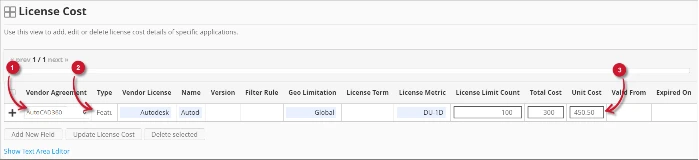
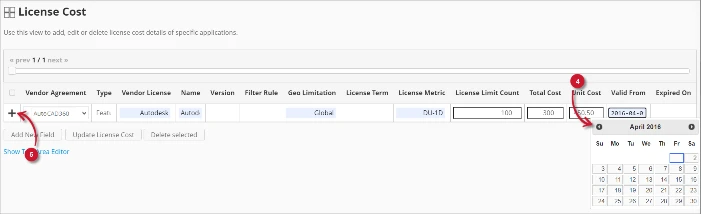
Figure 4. Analysis Server Administration: License Cost – Adding Record
The list of license cost should include the newly added item.
Adding a New Field #
Follow these instructions to add a new column for License Cost details:
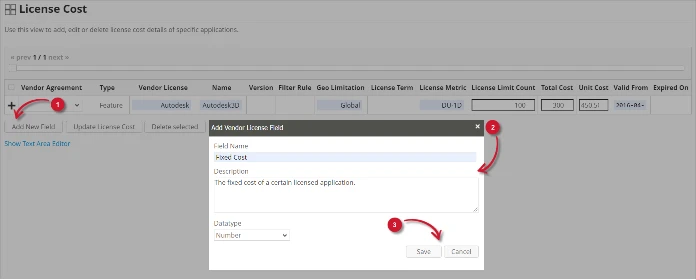
- At the bottom of the License Cost table, click the Add New Field button.
The Add Vendor License Field dialog should appear. - Provide the following details.
- Field Name – a descriptive name of the field
- Description – a brief description to describe the field
- Datatype – the type of data the field accepts
- Clicar Guardar para continuar.

Figure 5. Analysis Server Administration: License Cost – Adding New Field
The License Cost table should include the newly added column.
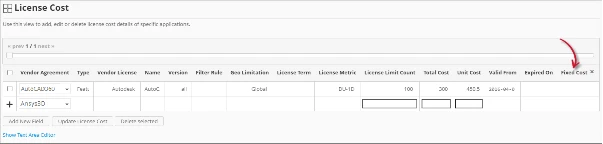
Figure 6. Analysis Server Administration: License Cost – Added New Field
Updating a Record #
Follow these instructions to update a specific record:
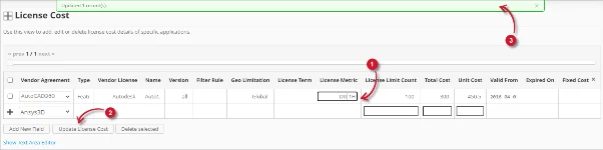
- In the License Cost table, click the value of the column to update. This should transform to a textbox.
- Click the Update License Cost button at the bottom of the License Cost table.
- A notification message should appear at the top of the page showing the status of the update.

Figure 7. Analysis Server Administration: License Cost – Updating Record
Apagar registo #
Follow these instructions to delete record(s) from the License Cost table:
- Click the corresponding checkbox of the record to be deleted.
- Click the Delete selected button at the bottom of the table.
- Deve aparecer uma mensagem de confirmação.
- Clicar Guardar para continuar.

Figure 8. Analysis Server Administration: License Cost – Deleting Record
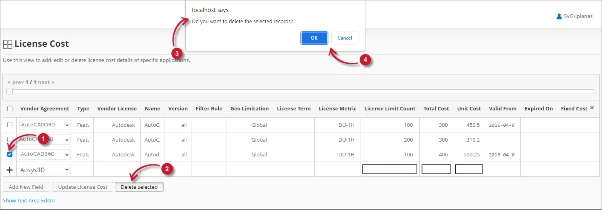
The License Cost table should automatically be updated.
Editor de área de texto #
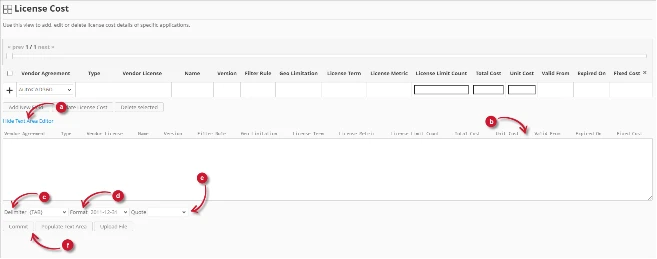
Figura 9. Detalhes do editor da área de texto da administração do Analysis Server
Detalhes do editor de área de texto #
O editor da área de texto é outra forma de adicionar, editar e apagar registos na lista. O editor tem os seguintes componentes:
- Alternar ligação - alterna a apresentação do editor da área de texto.
- Área de texto - área onde colar e manipular os registos.
- Delimitador - o carácter a utilizar como separador para cada item de um registo.
- Formato - o formato a utilizar para as datas.
- Aspas - aspas a utilizar para separar cada item de um registo.
- Comandos:
- Confirmar - guarda as alterações efectuadas na área de texto.
- Populate Text Area – retrieve all the records from the table and display it in the text area.

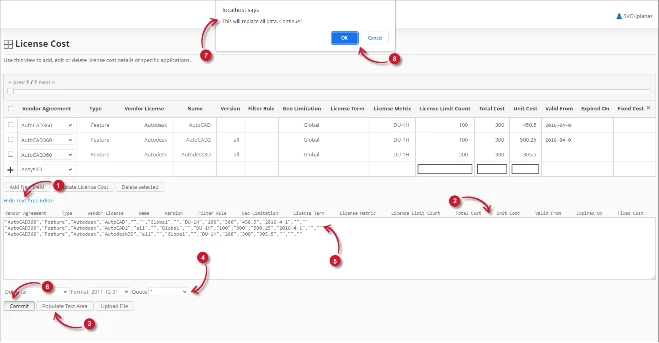
Figura 10. Administração do Analysis Server usando o editor de área de texto
Utilizar o editor de área de texto #
Siga estas instruções para utilizar o editor da área de texto:
- Clique na ligação de alternância Mostrar/Ocultar Editor de Área de Texto.
O Editor de Área de Texto deve ser apresentado. - Clique no botão Preencher área de texto. O editor da área de texto deve ser preenchido.
- Modify the records as desired. Use the components for Delimiter, Format and Quote.
To add a record, simply add a new line.
To delete a record, simply delete the entire row of the record. - Clique em Popular área de texto para aplicar os formatos selecionados. Repare que o delimitador, o formato e a aspa selecionados devem ser aplicados no editor da área de texto.
- Clique no botão Commit.
Deve ser apresentada uma mensagem de aviso para confirmar a aplicação das alterações. - Clique em OK para continuar.
A lista deve ser actualizada automaticamente.
Uploading a Source File #
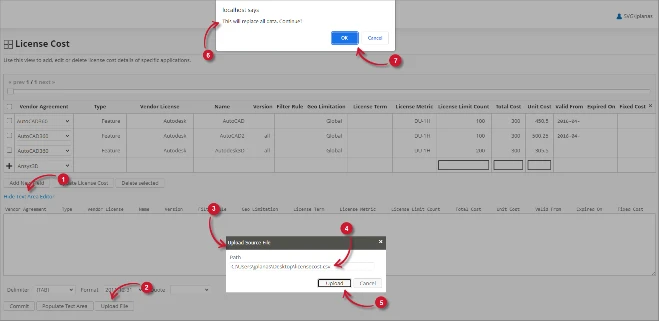
Follow these instructions to upload a prepared source file of License Cost details:
- Click the Toggle Link of the Text Area Editor.
- At the bottom of the page, click the Upload File button.
- The Upload Source File dialog should appear.
- Provide the valid path of the source file. The UNC path (\\path_to_file) is accepted.
- Click the Upload button to continue.
- A confirmation message of the upload process should appear.
- Clicar OK para continuar.

Figure 11. Analysis Server Administration: License Cost – Upload File
Resolução de problemas #
This part provides the possible work around for a known issue in the License Cost page.
Página de erro apresentada quando o acesso não é feito no localhost #
There will be times when accessing the License Cost page remotely or via hostname, it displays an error page.
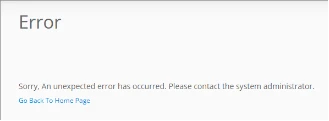
Figure 12. Analysis Server License Cost Page Troubleshooting: Error page displayed
Utilize as seguintes sugestões para solucionar este problema:
Verificar se existem erros na consola do navegador Web #
Siga estas instruções para verificar se existem erros na consola do navegador Web:
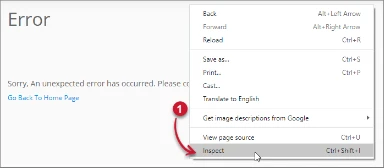
- No License Cost página, clique com o botão direito do rato em qualquer parte da página e selecione Inspecionar.

Figure 13. Analysis Server License Cost Page Troubleshooting: Error page displayed – Inspect
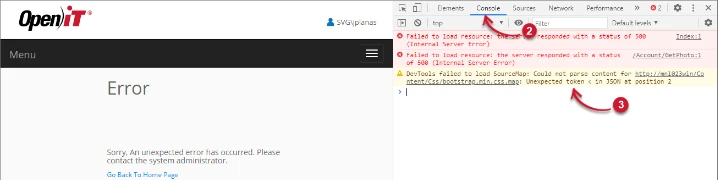
O Ferramentas para programadores deve aparecer. - Escolher Consola a partir dos separadores disponíveis da ferramenta.
A consola lista as transacções do navegador Web, incluindo os erros.
Figure 14. Analysis Server License Cost Page Troubleshooting: Error page displayed – Console - Por vezes, os erros na consola podem ser demasiado técnicos. Para obter uma resposta imediata, envie os detalhes do erro para support@openit.com.
Aceder ao sítio web através de localhost #
Para ver a mensagem de erro real do servidor, vá para a máquina que aloja o Servidor de Análise Open iT e, em seguida, aceda a http://localhost num browser. A mensagem de erro real deve ser exibida.