


Parasoft License Manager #
Introduction #
Open iT supports Parasoft usage reporting by collecting log files and converting them to Open iT format.
An Open iT client is installed on your license server for this collection. The data collector monitors and gathers the license usage history logs from the license manager every 5 minutes. Once the logs are collected, the data collection process triggers and the logs are passed to the data preprocessor. After the data is preprocessed, it is transferred to the Core Server for further storage, completing the history logs collection and processing.
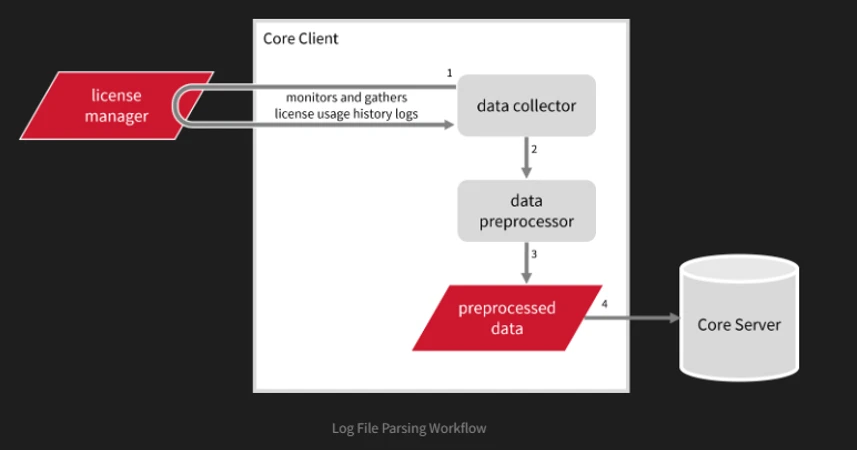
This will produce the following aggregated data types used for historical reporting:
- (89) Total License Use Licenseevents
- (90) Individual License Use Licenseevents
- (91) Usergroup License Use Licenseevents
- (108) Host License Use Licenseevents
- (109) Hostgroup License Use Licenseevents
The following sections will guide you in setting up the necessary configuration to collect and send the required data to the server.
Requirements #
- An Open iT Client connected to an Open iT Server
- License server administrative rights
- Full path to the debug log
Configuring Log File Collection #
These are the required steps to configure collection of Parasoft log files.
- Go to the Components directory, which is by default in C:\Program Files\OpeniT\Core\Configuration\Components, and back up the logfilecollector-parasoft.xml file.
- Open a command prompt with Administrator level privileges.
- Go to the bin directory, which is by default in C:\Program Files\OpeniT\Core\bin, run the command:
- cd C:\Program Files\OpeniT\Core\bin
- Once in the directory, set the location of the Parasoft log files, run the command:
- openit_confinit -c “logfilecollector-parasoft.logfilecollector.source.dir=<parasoft_log_dir>”
- where <parasoft_log_dir> is the location of the Parasoft log files.
- Example:
- openit_confinit -c “logfilecollector-parasoft.logfilecollector.source.dir=C:\ProgramData\Parasoft”
- Example:
- Update the configuration file, run the command:
- openit_confbuilder –client
Activating Log Data Collection #
These are the required steps to activate collection of Parasoft log data.
- Go to the Components directory, which is by default in C:\Program Files\OpeniT\Core\Configuration\Components, and back up the logfilecollector-parasoft.xml file.
- Open a command prompt with Administrator level privileges.
- Go to the bin directory, which is by default in C:\Program Files\OpeniT\Core\bin, run the command:
- openit_oconfinit -u “collect_license_parasoft-logs.root.scheduler.jobs.collect_parasoft_licenselogs.general.active=true”
For assistance or further configuration support, please contact your Open iT support team.
For additional references, you may visit our Documentation page.