


Analyst ReportOpen iT Named a Leader in the 2025 QKS SPARK Matrix™
See why we’re a Leader.
Download Full Report
Webinar SeriesIs It Time to Switch to User-Based Licensing?
Webinar SeriesIdle No More: Reclaiming and Reallocating Underused Licenses
Webinar SeriesGetting the Most from Open iT: Power Features You Might Be Missing
Webinar SeriesBenchmark Your Engineering License Usage: What’s Normal, and What’s Not?
Webinar SeriesFrom Data to Decisions: License Usage Analytics for Engineering Teams
Webinar SeriesPreparing for Cloud-Based and SaaS Licensing Models
Webinar SeriesFive Signs You Have a License Hoarder on Your Team
Webinar SeriesCentralized License Integration Management System (CLIMS): One Portal. Total License Control.
Webinar SeriesWhy The Smartest Product Teams Never Go to a Budget Meeting Empty-Handed
Webinar SeriesLicense Consolidation Strategy During Mergers & Acquisitions
Webinar SeriesDriving License Efficiency with ServiceNow® SAM Pro and Open iT
Webinar SeriesUnlocking Hidden Value with Software Asset Management
Webinar SeriesMapping the Way to Efficiency: How Feature-to-Feature Set Mapping Unlocks Value
Webinar SeriesSiemens Simplified: Optimize Licenses in Complex Hybrid Environments

KNOWLEDGE BASE

How can we help?

Table of contents

Requirements #

  1. Open iT client or Core Server machine that has internet connection.
  2. Bentley Cloud credentials –customer’s responsibility

Note: You can do this on any machine that has OpeniT Client or Core. In CPH we put it on their Core Server and as long as the server has internet connection and Open iT Client, it will work.

Steps #

  1. In the command prompt with administrator level, go to OpeniT’s bin directory
  2. Then run this command: openit_bentleycloud -c -s
    1. Ask the customer about the email and the password, if it doesn’t work, let them try to login on their portal first to check if it is working.
  3. After this command, there shouldn’t be an error, but it will show the license usage.
  4. We can now configure Licpoll like we usually do.
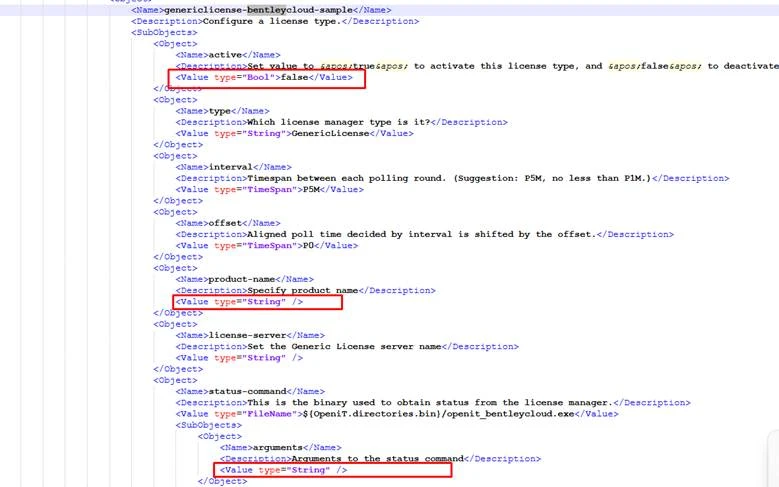
Active = True
Product-name = whatever the customer wants
Arguments = -t “C:\ProgramData\OpeniT\Data\temp\Bentley” – depends on where their data folder is

  • Save and run confbuilder.
  • Run sample collection then see on Licpoll folder the status file.

Other Categories

Demo Videos

Short, informative videos showcasing product features, workflows, and best practices through real-world demonstrations.
Explore More

Interface Guides

Step-by-step instructions and visuals explaining how to navigate and use the application’s user interface effectively.
Explore More

License Managers

Documentation and tools for managing, monitoring, and maintaining software licenses across different systems or products.
Explore More

Upgrade

Instructions, best practices, and technical guidance for updating Open iT components to newer versions, ensuring a smooth, secure, and efficient transition with minimal downtime.
Explore More

Looking for More Resources?

Explore additional content through our Customer Portal or Documentation page for anything not covered here.

Scroll to Top

Let's talk

We’ll show you how your business can benefit from Open iT solutions.
Please note:
By submitting this form you are agreeing to receive additional communications from Open iT. Your information will be processed in accordance with our Privacy Notice.

Let's talk

We’ll show you how your business can benefit from Open iT solutions.
Please note:
By submitting this form you are agreeing to receive additional communications from Open iT. Your information will be processed in accordance with our Privacy Notice.