




Introduction #
SQL Server by default uses all available resources within the machine. It can also potentially stop other system processes.
Resolution #
Check whether the CPU affinity is already limited within SSMS of the sql server by running a query:
EXEC sp_configure 'show advanced options', 1;
RECONFIGURE;
EXEC sp_configure 'affinity mask';
If the result shows config_value = 0, it means it will use all available CPU within the machine

To limit this, refer to the table below:
| No. of CPUs | CPU CORE | Affinity Mask Value |
| 1 | CPU 1 | 1 |
| 1 | CPU 2 | 2 |
| 1 | CPU 3 | 4 |
| 1 | CPU 4 | 8 |
| 2 | CPU 1, 2 | 3 |
| 2 | CPU 1, 3 | 5 |
| 2 | CPU 1, 4 | 9 |
| 2 | CPU 2, 3 | 6 |
| 2 | CPU 2, 4 | 10 |
| 2 | CPU 3, 4 | 12 |
| 3 | CPU 1, 2, 3 | 7 |
| 3 | CPU 1, 2, 4 | 11 |
| 3 | CPU 1, 3, 4 | 13 |
| 3 | CPU 2, 3, 4 | 14 |
| 4 | CPU 1, 2, 3, 4 | 15 |
Notes:
A “CPU” can have multiple logical processors. Hence, some CPUs have 4 “CPU Core” and 8 “Logical Processors”. In this case, “No. of CPUs” directly correlates to the total amount of Logical Processors of the machine.
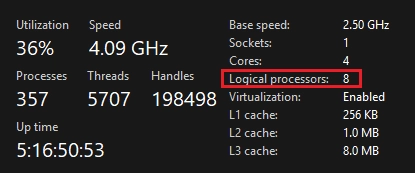
If you only want to use the first 2 CPUs (CPU 1, 2), run the query below:
EXEC sp_configure 'affinity mask', 3;
RECONFIGURE;
If you only want to use the first 3 CPUs (CPU 1, 2, 3), run the query below:
EXEC sp_configure 'affinity mask', 7;
RECONFIGURE;
To reset this to 0 (Which will use all of the available resources), just run the query below:
EXEC sp_configure 'affinity mask', 0;
RECONFIGURE;
Overview #
No need to restart SQL Service, RECONFIGURE automatically applies the changes
This will make ETL run a bit longer depending on data
ETL run still largely depends on…
- System specs (SQL is CPU-heavy by default)
- Other processes in the machine
- Efficiency of how ETL transforms and loads the data