

Analyst ReportOpen iT Named a Leader in the 2025 QKS SPARK Matrix™
See why we’re a Leader.
Download Full Report
Webinar SeriesIs It Time to Switch to User-Based Licensing?
Webinar SeriesIdle No More: Reclaiming and Reallocating Underused Licenses
Webinar SeriesGetting the Most from Open iT: Power Features You Might Be Missing
Webinar SeriesBenchmark Your Engineering License Usage: What’s Normal, and What’s Not?
Webinar SeriesFrom Data to Decisions: License Usage Analytics for Engineering Teams
Webinar SeriesPreparing for Cloud-Based and SaaS Licensing Models
Webinar SeriesFive Signs You Have a License Hoarder on Your Team
Webinar SeriesCentralized License Integration Management System (CLIMS): One Portal. Total License Control.
Webinar SeriesWhy The Smartest Product Teams Never Go to a Budget Meeting Empty-Handed
Webinar SeriesLicense Consolidation Strategy During Mergers & Acquisitions
Webinar SeriesDriving License Efficiency with ServiceNow® SAM Pro and Open iT
Webinar SeriesUnlocking Hidden Value with Software Asset Management
Webinar SeriesMapping the Way to Efficiency: How Feature-to-Feature Set Mapping Unlocks Value
Webinar SeriesSiemens Simplified: Optimize Licenses in Complex Hybrid Environments

KNOWLEDGE BASE

How can we help?

CLIMS supports email alerts for the following scenarios:

  • Vendor daemon down
  • License file was modified locally
  • License was revoked

Configuring Email Alerts Settings #

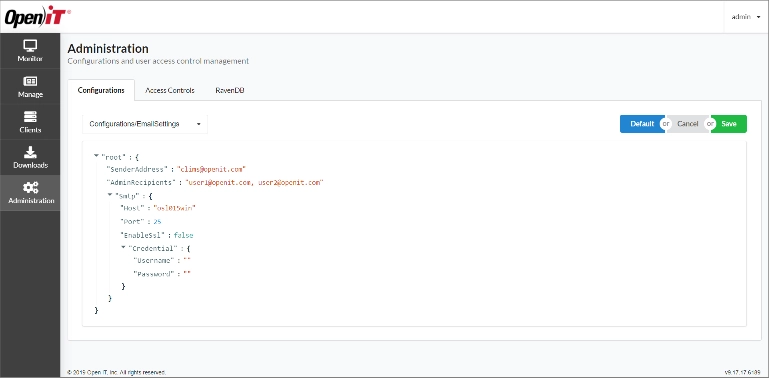
  1. In Administration > Configurations, select Configurations/EmailSettings from the drop-down list of available configuration files.
  2. Specify the SenderAddress and AdminRecipients.
    • Add multiple recipients by separating the email addresses using a comma.
  3. Specify the SMTP Host and Port.
  4. Set the value of EnableSsl to true, then specify the Username and Password (optional).
  5. Click Save.
Interface of CLIMS by Open iT
Figure 1. Configuring Email Alerts Settings

Muting Email Alerts #

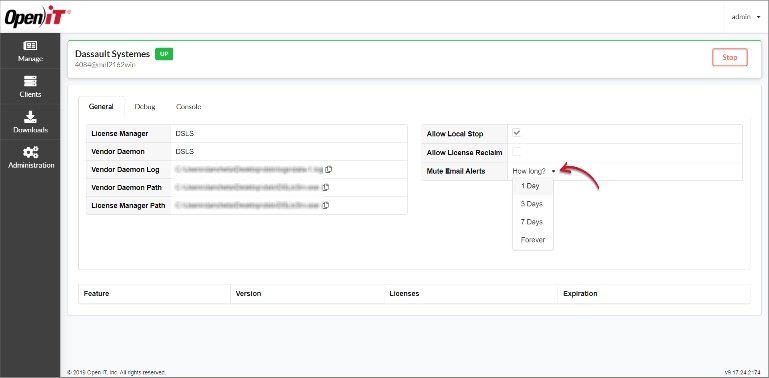
Email alerts can be turned off for a given vendor. By default, alerts are enabled upon configuration.

  1. In the Manage tab, select the vendor.
  2. Under General, select the duration in the Mute Email Alerts drop-down list.
Interface of CLIMS by Open iT
Figure 2. Mute Email Alerts for a Specific Vendor

Click Reset to remove the selected duration or unmute.

Interface of CLIMS by Open iT
Figure 3. Reset Selected Duration

In the Manage tab, the bell icon next to the vendor name indicates muted alerts.

Interface of CLIMS by Open iT
Figure 4. Muted Email Alerts Icon – Manage Page in Card View
Interface of CLIMS by Open iT
Figure 5. Muted Email Alerts Icon – Manage Page in Table View

For assistance or further configuration support, please contact your Open iT support team.

For additional references, you may visit our Documentation page.

Other Categories

Configuration

Guides and references that help users set up, customize, and optimize system settings to match their specific requirements.
Explore More

Demo Videos

Short, informative videos showcasing product features, workflows, and best practices through real-world demonstrations.
Explore More

License Managers

Documentation and tools for managing, monitoring, and maintaining software licenses across different systems or products.
Explore More

Upgrade

Instructions, best practices, and technical guidance for updating Open iT components to newer versions, ensuring a smooth, secure, and efficient transition with minimal downtime.
Explore More

Looking for More Resources?

Explore additional content through our Customer Portal or Documentation page for anything not covered here.

Scroll to Top

Let's talk

We’ll show you how your business can benefit from Open iT solutions.
Please note:
By submitting this form you are agreeing to receive additional communications from Open iT. Your information will be processed in accordance with our Privacy Notice.

Let's talk

We’ll show you how your business can benefit from Open iT solutions.
Please note:
By submitting this form you are agreeing to receive additional communications from Open iT. Your information will be processed in accordance with our Privacy Notice.