


Introduction #
This guide covers the step-by-step guide on how to check if the ports needed in accessing Open iT webpage is enabled which serves as the primary entry points between the Core Client, Ingress, Core Server and Analysis Server.
Requirements #
- Open iT Client connected to an Open iT Server or coexistent setup
- Server administrative rights
- Command Prompt with administrator rights
- Windows PowerShell with administrator rights
Step 1: Check for the ports required by Open iT
- Reference for the ports used by Open iT: Installation Requirements | Open iT Online Documentation
- The unified navigation for Open iT web interface uses port 443 for HTTPS and port 8080 for HTTP as the primary entry points.
Step 2: Check for the current enabled ports in the current license server
- Open Command Prompt as Administrator.
- Run the following command:
netstat -an | find /i “listening”
Where:
- netstat -an — Displays all active network connections and listening ports.
- -a → shows all connections and listening ports.
- -n → shows addresses and port numbers in numeric form (instead of resolving names).
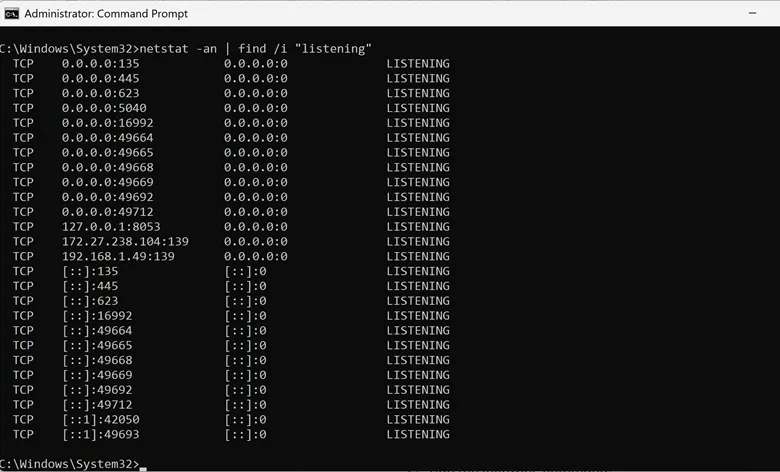
- You can also specify the port number you would like to find. In this case, we are looking for port 8080 or 443. You can run the following command:
netstat -an | find /i “<port>”
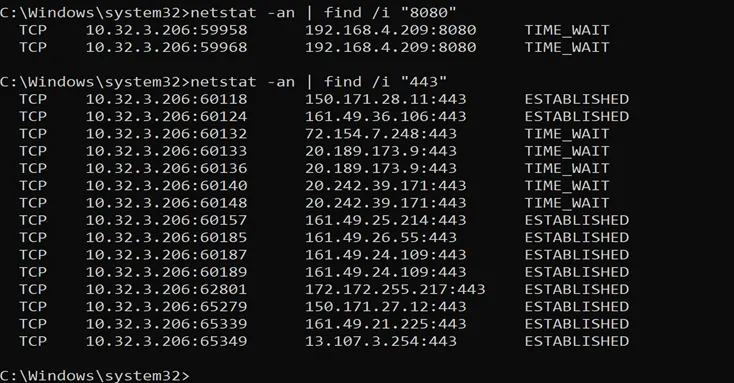
In this case, you can see that the port is enabled.
Step 3: Verify if the Open iT client can connect to the Core Server
- Go to any license server or workstation that has Open iT client installed.
- Open Windows PowerShell and run it as administrator
- Run the following command:
Test-NetConnection <hostname> -Port <number>
Where <hostname> is the server-uri and <number> is the port used in Core Server.
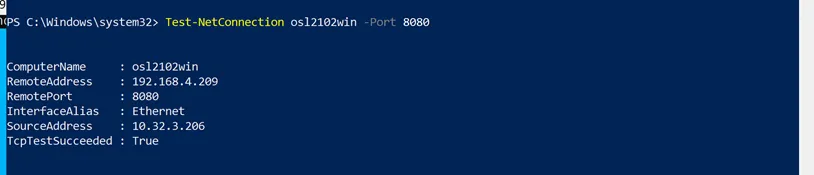
Make sure that the connection is successful.
Optional: How to know the server-uri #
You can find the server-uri by checking the following:
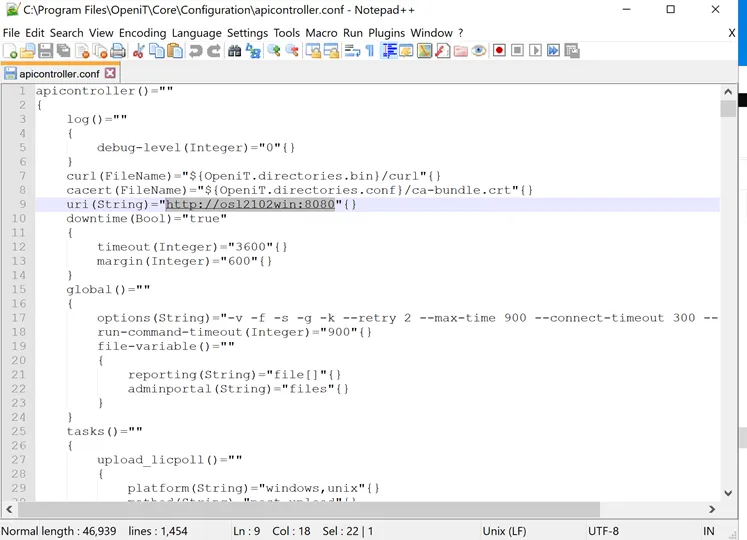
- Navigate to C:\Program Files\OpeniT\Core\Configuration
- Find and open “apicontroller.conf” using notepad++
- Under uri(String), that’s the server-uri that can be used to connect any Open iT client with the Open iT Core Server.
Conclusion #
You have now completed the of how to check if t.he port numbers being used by Open iT is enabled
To ensure that everything is in prepared
- Check for the ports if a new license server will be configured
- If found out that the ports are not yet enabled, you may coordinate with your network team to allow the said ports
- Always check your firewall connection if the ports are enabled. This could also be the reason why the connection could not push through.
For assistance or further configuration support, please contact your Open iT support team.
For additional references, you may visit our Documentation page.